AI Studio
Turn a prompt into a campaign, template, segment or workflow draft. Learn the steps, attachment limits, credit rules and prompts that work well.
AI Studio · AI assistant · prompts · generate email · AI credits · attachments · campaign draft · workflow draft
AI Studio helps you turn an idea into one new, editable draft at a time. Describe the outcome, answer any clarifying questions, review the proposed plan and confirm the generation cost. You then review the result and choose whether to save it in Azimea.
When available for your role and workspace, the AI Studio button sits in the bottom-right Help and status area. The remaining controls move into its space when it is hidden or Studio is open. You can also use the direct Studio link below.
Start here: Open AI Studio · Compare plans · Check billing and credits
Introduction video
Section titled “Introduction video”The introduction video uses English audio. Captions are available in English, Romanian, German, French, Spanish and Polish and follow your current application language. Changing the application language also changes the captions without restarting playback. Use the player’s caption selector to choose a different language or turn captions off; that choice lasts until you change the application language again.
Access and plans
Section titled “Access and plans”| Plan | AI Studio |
|---|---|
| Trial | Available during the trial |
| Free | Not included |
| Start, Growth, Pro | Included |
| Agency | Available when working in an eligible company workspace |
Open Studio in the company you want to work on, with an owner, administrator or authorized agency role. The workspace selector beside the Studio logo lists your accessible companies and sandboxes. Templates, campaigns, flows and Studio projects belong to the selected workspace. Changing it first saves your current Studio project, then reloads Studio in the selected company. Switching is unavailable while an operation runs, and a failed project save prevents the switch. A sandbox has separate draft resources from its live company. The agency management workspace itself does not expose Studio. Exploration mode also does not expose it. Availability depends on the installation’s AI configuration and usage limits as well as your plan. Free-plan AI credits for other features do not grant access to Studio.
The floating AI Studio button opens a compact workspace. Expand it for a full-page conversation or minimize it while checking another page. The left menu starts as a compact icon rail; expand it to browse projects. Your choice is remembered in this browser. On phones, the navigation button opens a drawer instead of reserving a permanent icon rail. Close it with its collapse button, Escape or the shaded area. The company icon in the compact header opens the workspace selector; its accessible label includes the current company’s name.
Azi, the blue-indigo wave companion, reacts while Studio processes a request, waits for your answers or has a draft ready. The adjacent status text describes the current operation. Azi also reacts when you stop a request or an operation fails. Animations respect your device’s reduced-motion preference.
Start with the card above the prompt: choose a campaign, flow, audience or email template, or close the card and write your own brief. Suggestions after a completed draft relate to that result, such as shortening an email or reviewing flow timing. A writing suggestion prepares the prompt for you to review and send; it does not start generation or spend credits by itself. Existing text stays in the prompt when you choose a follow-up. After saving, suggested next steps include opening the editor, starting a new project or asking for a checklist.
Messages omit visible author labels. Your messages use outlined bubbles; Studio replies use paragraphs, headings and lists where supplied. The available credit balance appears at the top right in the header. Below the prompt, the left side shows recorded credit usage for the current conversation; the model selector appears on the right when choices are available. This total follows the saved project and resets for a new one. Pending estimates and failed operations without recorded spending do not increase it; recorded partial spending does. The generation action separately shows the next operation’s cost before approval.
Project history and business context
Section titled “Project history and business context”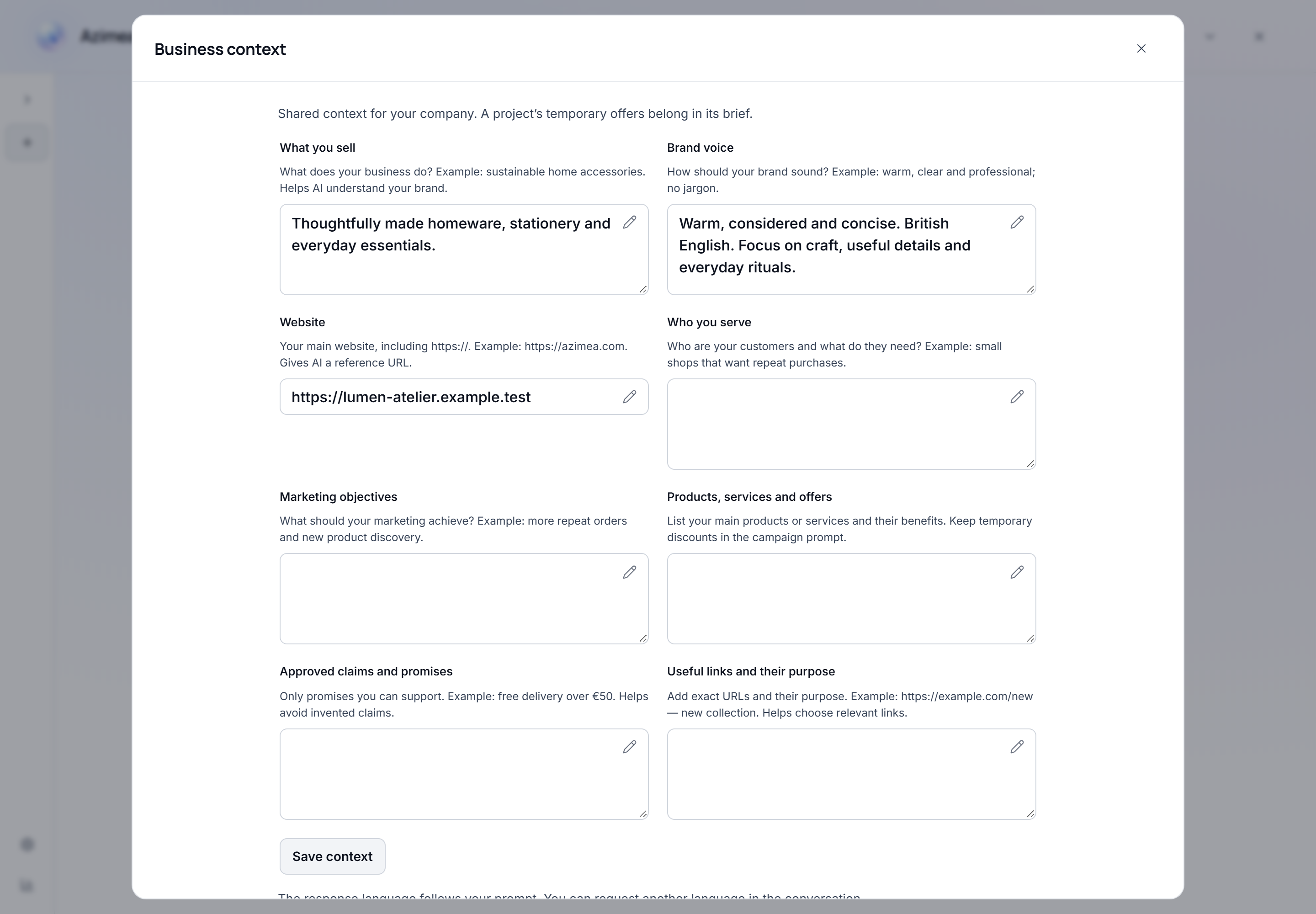
Studio automatically saves your conversation, unfinished prompt, generated draft, editing choices and included image URLs in the current company workspace. Wait for Saved before closing the tab. Autosave does not create a campaign, send an email or activate a flow, and it does not consume AI credits.
Use the project list to search by title and resume work. The project title appears once in the progress bar above the conversation. Open it to rename or duplicate the project; Escape closes the menu and returns focus to the title. Hover over a project (or focus it using the keyboard) and open its … menu to choose Delete. After confirmation, the project and its Studio conversation are permanently deleted; there is no restore action. Already-created campaigns, templates and flows remain available in their modules. The audit log retains the deletion time, actor, company, project ID, title and type, and request context; it does not retain the deleted conversation or attachments. Audit delivery follows the existing background processing and retention policy. Duplicating starts a separate draft; it does not duplicate or send an existing campaign. Saved configurations have an Open editor link.
History is shared with authorized users in the same company workspace. New projects are saved from the release of this feature onward; conversations from earlier sessions cannot be reconstructed. Raw attachments, file previews and temporary attachment handles are not stored in history. Reattach a source file if a resumed conversation needs details that were not included in the saved text. If saving fails or another tab has changed a project, keep your current tab open and copy any unsaved text before reloading; Studio will not silently overwrite the other version.
Use Business context for reusable company information: description, voice, website, audience, goals, offering, approved claims and useful links. These are the same company settings used by other AI features. Save permanent brand facts here; put temporary offers, dates and campaign-specific instructions in the project prompt. Describe your own products or services, customers and objectives, and include only claims your company can support. Check factual claims before saving them.
Business context opens in a dialog over your conversation. Each field includes guidance about what to enter. Close it with the close button or Escape to return to chat. Unsaved fields stay available when you reopen the dialog in the same session; use Save context to keep them after a refresh. Credits and plan opens billing and plan comparison in a dialog too, so viewing usage does not take you out of Studio.
Studio replies in the language you use in the conversation. The email language is a separate choice: include it in your brief, for example, “Create a welcome email in French,” or Studio will ask before generation. You can discuss an English email in Romanian, or a Romanian email in English. Once chosen, the email language stays the same through revisions unless you ask to change it; switching the chat language does not translate the email. If the requested email language is unavailable, Studio asks you to choose a supported language. Brand settings opens the company settings, and Credits and plan opens billing. Recorded project activity credits describe completed operations in that project; billing remains the source for account usage.
Choose AI models
Section titled “Choose AI models”For campaigns and email templates, open AI models beside the message box. Choose Email creation and Images · per image separately. The catalog shows the installation’s configured models, their credit prices and current availability. An unavailable choice is disabled. Automatic keeps the installation’s existing routing and fallback policy; an explicit model selection uses that model without substituting another.
The email choice applies to subsequent planning, email generation and AI revisions. The image choice applies to subsequent requested pictures, including extra section images. Choosing an image model adds no charge when the brief requests no images. Workflow and audience generation keep their existing model routing.
Review the selected models and combined credit estimate before choosing Generate draft. Changing a selection clears the previous approval. A changed model revision or price requires another approval even when the displayed total stays the same. Active operations and partially completed image bundles retain their original choices. Recovering a previously paid image uses its original operation; it does not buy it again.
Choices are saved with the project. This browser also remembers your preference for new projects, separately for each user and company. If a saved model is retired or becomes unavailable, choose a replacement explicitly. An existing preview stays unchanged when you change a model; the choice applies to the next AI operation.
What you can prepare
Section titled “What you can prepare”| Result | What to describe | What to review |
|---|---|---|
| Campaign | Purpose, factual message, audience, tone and destination URL | Subject, preheader, content, selected audience and exclusions |
| Email template | Reusable structure, brand, content and an optional destination | Layout, copy, links and personalization in the visual editor |
| Audience segment | The people you want to reach and the rules defining them | Exact supported rules and the real audience preview before saving |
| Flow | Trigger, audience, branches, actions, timing and exit conditions | The actual editable graph and settings inside Studio |
For a campaign, name an existing segment when you know the target. Studio applies an identified segment to the actual audience selector and checks its current recipient count. Existing exclusion segments can be applied too. Review the selected names and exclusions before saving. A descriptive audience idea is not a saved selection. If a selected segment is unavailable, saving stays blocked until you correct the choice; Studio does not replace it with all contacts. A failed audience load can be retried without another AI generation. Manual choices in the draft panel are retained on unrelated copy revisions. An explicit targeting change replaces them after review.
Email drafts use an editorial, modern or classic visual direction with editable typography, colors and spacing. Text-only editorial messages can intentionally omit a call to action; Studio does not add an empty button. When native layout is available in your installation, you can request real desktop columns, such as an introduction on the left and a next step on the right. Columns stack on phones and remain editable in the email designer after saving. Studio chooses optional spacing and backgrounds without asking about each detail. To change only the arrangement, say Keep all wording and pictures; make the columns 67% and 33%. Review the proposed change, then choose Apply layout. Layout uses free planning; new copy and AI pictures retain their displayed generation costs. If layout fails after content generation, Studio keeps the completed copy and pictures. Retry Apply layout without generating that content again. The final preview appears after layout completes, and saving waits for the current rendered checks to pass. These checks do not certify every email client; preview and test your email before sending. The footer uses the company’s approved translation for the email language when one is configured, otherwise the main company footer. Add permanent footer translations in company settings rather than asking the model to invent legal or subscription wording. Product sections can have their own action buttons; all draft buttons use the destination you approved. If your request and saved preferences leave pictures undecided, Studio asks once: Generate AI pictures, Upload my pictures or Without pictures. Choose in the conversation. An explicit request already settles that choice; delegating colors or typography alone does not authorize picture generation.
Choose Upload my pictures to include your own photos directly in Studio. You can also select it from the paperclip menu before your first message. This is separate from an inspiration attachment. Upload up to six pictures, within the company image library’s file limits (currently 2 MiB each). Uploads use no AI credits. Each picture is included in a separate section in upload order, and its stored URL survives project reloads. Generation stays unavailable until a picture has finished uploading when you choose this source. Remove an unwanted picture before generation, or adjust its placement and alternative text in the draft’s section controls. When revising only the text, ask to keep the existing pictures: Studio reuses them without buying new images. To remove section pictures while preserving the wording and design, say so in chat. Studio applies this as a direct change with zero generation credits. Undo last exact edit restores the pictures. A combined request that also changes the copy or design still requires the displayed generation approval.
Ask Studio to generate and include the AI pictures you want, such as a hero and a complementary lifestyle image. The plan records the requested image count, and the displayed total includes the draft and those pictures. After you approve, Studio generates and includes them before showing the completed preview. If image storage fails, retry from the conversation: completed text and paid image operations are retained, so recovery does not buy the same work again. You can also ask to keep the existing text and continue without section pictures; Studio recovers that text without another text or image generation. A literal text correction while pictures are still pending keeps the image stage pending until you retry or explicitly remove the pictures. If you undo that removal in the same session, the previous image stage resumes with its existing operation IDs and paid results; an unfinished email is not presented as complete. Wait for Saved before closing the tab.
If generation fails, Studio explains which stage could not finish and keeps the agreed brief and choices. Use Retry generation inside the composer rather than repeating your request. Review the displayed cost before retrying: completed text and paid image steps are reused, and only remaining work is estimated. Text rejected by the quality checks is not charged. A provider outage has a separate notice and does not mean the text failed editorial review. Reopening a failed conversation does not restart generation; you choose when to retry. Retry still runs the normal quality checks and may fail again.
You can also open Add an AI image under a section to request an additional picture at its displayed cost, add alternative text, and choose Save and include image. Unrequested pictures are not generated automatically.
An email with included images cannot be saved until its current desktop and phone image checks finish successfully. If an image fails to load, restore its availability and choose Retry in the layout notice. Retry refreshes the visible preview and checks the existing images; it does not run another paid generation. Other layout findings, such as contrast or overflow, remain visible for your review. When you delegate the visual concept, Studio chooses the design instead of requiring optional brand preferences or uploaded photography. Requested social icons remain editable and can be displayed without links until you add them. Generated images are illustrations, not verified photographs of your products. For exact product appearance, upload your own photos in Studio or the visual editor. A design reference guides the result; it does not guarantee an exact reproduction of a screenshot or document. Review prices, claims and links before using any draft.
Generation and draft saving do not send campaigns or activate flows. Sending, scheduling and publication use separate explicit controls and confirmation. Contact references and actual audience imports are different actions.
Flow generation supports Event, Manual, API, Schedule and connected-store triggers; audience segments, uploaded lists and rules; Yes/No conditions; emails, waits, tags, webhooks and exits. Give exact event names, destinations and time zones. Event waits include both success and timeout paths. Existing templates and saved senders can be reused. A proposal supports up to 40 steps, 80 connections and five newly written emails. Form and standalone CSV triggers remain unavailable; a contact file belongs to an Audience step.
After Save flow and configure, review and adjust the canonical flow settings inside Studio. Switch between Flow setup and Conversation; on smaller screens, Select step opens each step’s settings. The selector also offers the workflow’s advanced settings. Test and publish actions remain in the bottom chat box. Review the actual graph and use the flow testing guidance before publication.
For the flow saved in the current project, you can request a chat revision, such as changing one tag or wait while keeping all other settings. Review its new plan and generation cost, then save the replacement draft. Studio keeps the same flow and reuses unchanged email templates. Existing runs and a published version are not changed by saving that draft. This does not select and edit arbitrary saved flows by name.
When a flow needs a list, choose Upload a list in its audience question. Studio prepares an inactive flow, opens the existing CSV/Excel importer, previews the columns and asks you to confirm their mapping and import. This importer accepts up to 2,000 rows. Continue after the import succeeds; the generated Audience step uses that flow’s actual list. Only list metadata goes into planning, not contact row values. Importing does not run the flow or establish marketing consent. An unfinished upload can leave an inactive draft in Flows.
For webhooks, supply the real public HTTPS endpoint. A signing key created during saving is shown once in a separate dialog; it is not included in chat history or AI input. Store it securely before dismissing the dialog.
Create your first draft
Section titled “Create your first draft”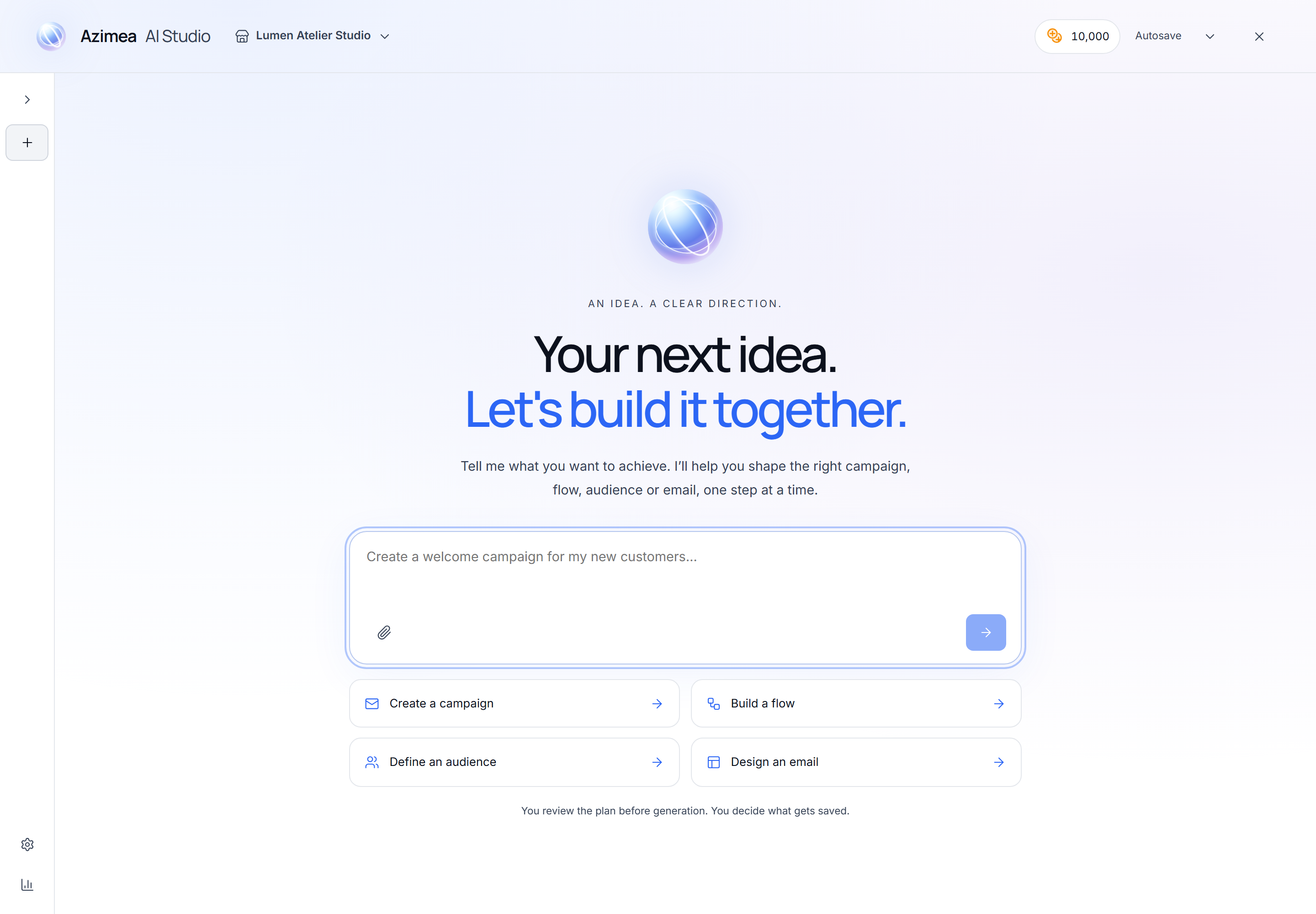
- Open Studio and check the company. Choose the intended result, such as a campaign or template.
- Write a specific prompt. Include the goal, audience, facts, desired language and exact destination URL for a campaign. For a reusable email template, you can explicitly leave the audience and destination unset. Studio still presents the generation action and its credit estimate. With no destination, CTA wording remains editable, non-clickable text; assign the real destination in the editor before using the template in a campaign. Add a reference if it helps. Start with one deliverable rather than several unrelated campaigns or flows.
- Answer the questions. Studio may need a missing URL, event, factual message or audience detail. Correct its interpretation before proceeding. If picture intent is undecided, choose generation, upload or no pictures. Guided questions replace the prompt inside the bottom chat box. Select an answer, choose Use recommended explicitly, or type your own direction. Continue advances to the next question; Back preserves your choices. The final Continue sends the answers together. Selecting choices does not make an AI request or approve paid generation. Close and resume the questions to keep an unfinished answer set. Older conversations can still ask for a written reply. A proposed plan is not yet a generated or saved draft.
- Review the plan and cost in the bottom chat box. Expand the plan title to inspect its details, or What’s included in this cost for the explanation. The credit estimate and Generate draft remain visible while expanded details scroll. Choose Generate draft to approve that cost. There is no separate confirmation checkbox. If your balance is insufficient, review your plan or credits before trying again.
- Generate. The activity panel animates the current operation and reports stages such as reviewing, generating and validating. Elapsed time describes the current request, not a guaranteed completion time. Avoid starting duplicate requests while it runs. The prompt’s send control becomes Stop after the current step. Stopping lets the current operation finish and keeps completed work; it does not immediately cancel a provider request or refund completed work.
- Inspect the result. The right pane appears after generation and contains the result preview. On phones and tablets, use Preview and Conversation to switch views. Email details, optional manual adjustments and save actions remain beside the conversation, with the primary save action inside the bottom chat box. Explain any changes you need there; email revisions use the previous draft as a reference and require approval of the next generation cost. Review the actual result after each revision.
- Save deliberately. For a campaign, choose Save campaign and configure. The saved draft’s settings open inside Studio: audience and exclusions, sender, subject and content, optional settings, readiness and delivery time. On a narrow screen, use Campaign setup and Conversation to switch views. Primary test and send/schedule controls remain inside the bottom chat box. Flows similarly use Save flow and configure; templates open their visual designer, and segments are saved in Contacts.
- Test before launch. Check sender settings and consent, preview on desktop and mobile, and send a test email or use a sandbox. Scheduling, sending and activating are separate actions.
For the next step, see Campaigns, Email templates, Segments, Flows or Sandbox testing.
Prepare a campaign delivery time
Section titled “Prepare a campaign delivery time”Include an exact date, time and named time zone in the brief, for example, “Prepare this campaign for 10 November 2026 at 10:00 Europe/Bucharest; keep it as a draft.” Studio proposes that instant in Campaign setup. The picker displays it in your browser’s time zone, shown beside the fields. Check it before confirming. The proposed time follows the saved Studio project; it is not a scheduled campaign until you explicitly confirm Schedule the campaign. Selecting Now also requires a separate sending confirmation.
Choose a unique valid time: a skipped or repeated hour during a daylight-saving change needs clarification. Campaign scheduling accepts at least five minutes ahead and at most 365 days ahead. An expired proposal must be adjusted before scheduling. Sender verification, a usable audience and the campaign’s normal readiness checks still apply. Saving or reopening a Studio project never sends it.
After saving, use the visible setup fields to change the saved campaign. A creative chat revision starts a new draft proposal; it does not silently overwrite manual edits in the saved campaign.
Write a useful prompt
Section titled “Write a useful prompt”Give Studio the information you would give a colleague preparing the same draft:
Create a [campaign / email template / segment / event-triggered flow].Goal: [one concrete outcome].Audience: [who should receive it and who must be excluded].Facts to use: [verified product, offer or service details].Tone and language: [voice, language, approximate length].Call to action and destination: [button text and full https:// URL].Constraints: [required copy, claims to avoid, timing, brand rules].Reference: [what each attachment represents].Ask about missing details. Do not invent facts or discounts.Replace the bracketed instructions before sending. Use real URLs you control; the addresses below are examples. Include the email language even when it matches the conversation, or Studio will ask you to choose it.
Campaign: announce a new collection
Section titled “Campaign: announce a new collection”Prepare one campaign draft announcing our new linen collection.Audience: existing newsletter subscribers; I will review the selected audience before saving.Facts: linen shirts and trousers, available now. There is no discount.Use warm, concise English. Include a subject, preheader and one main CTA:"Explore the collection" linking to https://example.com/collections/linen.Do not claim limited stock, free shipping or sustainability certifications.Template: use a visual reference
Section titled “Template: use a visual reference”Choose Email template image idea in the attachment menu, then attach the reference.
Create a reusable newsletter template inspired by the attached layout.Use its hierarchy and spacing, but write original copy for our brand.Include a header, one introduction, two product sections and one main CTA.Use the attached brand guidelines for the tone and colours.CTA: "View products", https://example.com/products.Do not copy prices or offers from the reference. Ask if brand details are missing.Segment: define supported rules
Section titled “Segment: define supported rules”Prepare a segment for newsletter subscribers whose country is Romania.Use only fields and values available in this workspace. If the country orsubscription field cannot express this, explain what is missing instead ofsilently dropping a condition. Show the rules for my review before saving.Check the actual filters and audience preview. A matching segment is not proof of permission to send marketing;
consent and sending rules still apply.
You can describe numeric comparisons directly, such as orderCount > 1. State whether all conditions
must match (AND) or any condition may match (OR), then check that combination in the generated rules.
Flow: welcome subscribers
Section titled “Flow: welcome subscribers”Prepare a welcome flow triggered by an existing newsletter subscription event.First send a welcome email, wait two days, then send an introduction to our products.Use a friendly English tone and https://example.com/products as the destination.Do not add discounts. Ask me to choose the actual event if more than one matches.Keep the result as a draft for review; do not activate anything.An event must exist in the workspace. Asking for a made-up event name does not configure event collection. Supply the destination in your brief and review Call-to-action destination in the draft. Studio uses that reviewed URL when saving the email buttons; each generated step contains the button label. Saving a flow keeps it as a draft and does not activate it.
Follow-up: preserve facts while changing the direction
Section titled “Follow-up: preserve facts while changing the direction”Keep the audience and destination URL. Shorten the introduction to two sentences,use a more direct tone and remove any mention of an offer. Keep this as a campaign,not a workflow. Summarize the revised plan before generating again.Ask for platform guidance
Section titled “Ask for platform guidance”Where can I verify a sending domain in Azimea? Explain the next step and give methe link to the relevant settings page. I do not want to generate a draft.Studio can explain supported platform tasks and return links to the relevant dashboard modules. This kind of guidance does not use generation credits. It does not perform the configuration for you.
Work in Romanian
Section titled “Work in Romanian”Creează un draft de campanie în română pentru prezentarea colecției noastre noi.Public: abonații la newsletter. Nu avem reduceri. Ton cald, text scurt.Buton: „Descoperă colecția”, către https://example.com/colectie.Nu inventa prețuri sau beneficii. Întreabă-mă dacă îți lipsesc informații.Attach references
Section titled “Attach references”Choose the paperclip, select the purpose, then choose the file. Explain what should be taken from it. Upload my pictures stores final-use email pictures in the company image library and includes them in the draft. The reference purposes below provide information or inspiration; they do not place the original file into the email. Choose the final-use upload option when the actual photograph must appear in the result.
| Attachment purpose | Supported formats | Good use |
|---|---|---|
| Contact list | CSV | Understand the file’s structure and prepare import guidance |
| Email template image idea | PNG, JPG/JPEG, WebP, PDF | Provide layout and composition references |
| Brand guidelines | Images, PDF, DOCX, TXT, Markdown | Supply tone, identity and visual guidance |
| Brief | PDF, DOCX, TXT, Markdown | Supply verified requirements and content |
| Report | Images, PDF, DOCX, TXT, Markdown | Discuss supplied information and possible next steps |
Current upload limits are 10 files per submission, 20 MiB per file and 40 MiB total. Contact CSVs support up to 100,000 data rows. Extracted text documents support up to 200,000 characters per document and 500,000 characters in total. Large or complex documents may still exceed provider or processing limits: reduce them to the relevant pages or sections. Use text-based documents and legible images.
A contact CSV is a structural reference, not an import. Studio reads bounded facts such as the number of rows and recognized field names. Contact row values are not passed to the model through this CSV processing path. The attachment neither creates contacts nor verifies consent. Use Contacts → Import for the actual import. Avoid copying personal data into other documents or prompts unnecessarily.
Original reference files are not stored as permanent Studio uploads. Final-use email pictures are stored in the company image library, separately from these references. Normalized reference content is kept temporarily in server memory, scoped to the user and company, for up to 20 minutes; restart or eviction can expire it sooner. If asked, attach the reference again. Relevant non-CSV content may be processed by AI providers. Generated results have separate recovery storage, and a draft you explicitly save remains in its module. Temporary uploads do not mean that every piece of generated or saved content is automatically deleted.
Credits and review
Section titled “Credits and review”For an email already in Studio, you can supply an exact replacement in chat, for example: “Change only the subject to ‘Your next notebook’.” Studio applies supported literal changes without another paid generation. You can also replace the destination URL or a specific section’s heading, text or button. Undo last exact edit restores the previous draft. Creative rewrites still show their generation cost for approval. An exact edit removes the previous automated content-review marker.
Conversational email revisions retain audience settings and included images for matching sections. When a section cannot be matched safely, its image remains available under Reuse an included image · no credits in the section’s details. Studio does not assign it to an unrelated section automatically. Flow revisions receive the current graph, waits, trigger and exits; segment revisions receive the current rules and join. Review the complete result and actual audience count before saving.
Studio also checks rendered emails at desktop and phone widths for overflow, clipped text, contrast and images that did not load. The notice updates after changes and offers a retry if checking fails. Button text automatically uses a readable color against the brand background. These checks use your browser; they are not certification for every email app or a judgment of creative appeal.
- Platform guidance, clarification and planning use no AI credits, but are subject to usage limits.
- Before generation, Studio shows the required credits, available balance and any shortfall. Insufficient credits block that generation before the AI provider is called. Get more credits · View plans opens plan upgrades inside Studio, keeping your project in place. Separate credit packs are not currently offered.
- Studio and billing show the next credit reset date in UTC. Monthly credits reset on the first day of the calendar month at 00:00 UTC. The draft estimate includes the images requested in the plan. Additional images and generations are priced separately; each action is checked against the remaining balance.
- Generating a draft or an image uses credits. Use the current estimate shown in Studio rather than a fixed price from an old screenshot. Different actions can have different costs.
- An unusable result or a request for clarification is not charged as a successful generation. A usable result that you later choose not to save can still consume credits.
- If a planning or generation response fails validation, Studio can automatically correct it using the specific validation findings and check the replacement again. Attempts are bounded: a correction never skips permission, source-data or content checks, chooses unanswered options for you, or authorizes sending. If correction fails, Studio reports failure and keeps your existing text. Planning remains free in AI credits; correction does not add a second successful-generation charge.
- Saving an already generated draft is separate from generating another result. Revisions that generate new content can incur another cost.
- Email drafts receive an automated content review against the brief, supplied facts, language and requested revisions before the final preview appears. If a draft fails, Studio attempts a bounded correction and reviews it again. These checks are included in the approved generation price. If no acceptable result is produced, the request fails without charging successful-generation credits.
- Content checked against your brief identifies a completed text review. Editing the copy manually removes this marker. The review does not inspect rendered screenshots or verify external facts, links, deliverability or conversion performance. Flows and segments receive their own requirement-preservation review as well as supported-event and rule validation. The separate layout notice reports browser measurements.
Before saving or launching, verify the facts, links, personalization, audience and exclusions, event names, timing, sender identity and consent. For a flow, inspect the actual steps in the editor and test them.
Troubleshooting
Section titled “Troubleshooting”| What you see | What to do |
|---|---|
| Upgrade page or no Studio access | Check the company, role and plan. Free does not include Studio. Leave exploration or the agency management workspace. |
| Checking access or availability failed | Wait for the access check; use its retry action if it fails. Do not assume an empty balance means your plan is excluded. |
| More questions instead of a draft | Supply the missing facts, exact URL or event. Review the updated plan before generation. |
| Unsupported request | Narrow the task to one supported draft and check the supported trigger, rule and action types. |
| Reference expired | Reattach the relevant files. Temporary references are not a document library. |
| Unsupported or oversized file | Check its purpose, format and limits. Export contacts as CSV or provide a smaller, readable document. |
| Busy, timeout or unavailable provider | Keep the current tab open. Let an active request finish; if it fails, use the offered retry. Check saved drafts before manually creating a duplicate. |
| Result misses a requirement | State the missing constraint explicitly and review the revised plan. Never launch an incorrect result to work around an error. |
If a problem persists, contact support from the dashboard. Include the approximate time, action and visible error, without including credentials or an unnecessary copy of your contact list.
AI Studio and MCP
Section titled “AI Studio and MCP”AI Studio is Azimea’s built-in workspace. MCP connects an external assistant with separate permissions and plan requirements. Access to Studio does not automatically enable an external MCP connection.