Connect an AI assistant with MCP
Set up Azimea's remote MCP server, choose permissions, and prepare campaigns, templates and workflows with an AI assistant.
MCP · Model Context Protocol · AI assistant · reports
Azimea’s MCP server connects an AI assistant to one Azimea company at a time. It runs at
https://mcp.azimea.com/; there is nothing to install on your computer. Connect it from an MCP client, then choose
which Azimea data and draft actions that client can use. MCP access is included with Pro and Agency.
You can review reports, campaigns, templates and workflow drafts; save audience filters; and configure drafts of campaigns, email templates and workflows. Publishing a workflow, activating a campaign schedule and sending email still happen in Azimea after you review the result. The MCP tools do not return contact records, recipient lists, individual financial data or credentials. Email content and other information you request through MCP are sent to your assistant provider. Contact records remain in Azimea; do not paste contact data into a prompt yourself.
Before you connect
Section titled “Before you connect”-
Sign in to the Azimea company you want to connect and confirm it has a Pro or Agency plan.
-
Choose the access you need:
Permission What the assistant can do reports:readRead aggregate campaign, flow and deliverability reports. workspace:readRead campaigns, templates, workflow drafts, segment names and permitted field names, plus non-secret sending settings. workspace:writeCreate and change campaign, template, workflow and audience-filter drafts. It does not grant read access by itself. -
Use
reports:readandworkspace:readfor analysis. Addworkspace:writewhen you want the assistant to save drafts. Existing report-only connections do not gain workspace access automatically.
An owner, administrator or authorized agency manager can approve workspace reading. Only an owner or administrator
can approve workspace:write. Permissions are checked on every request, together with the company and its plan.
Connect in ChatGPT
Section titled “Connect in ChatGPT”ChatGPT’s custom MCP server instructions describe the current plugin interface. Availability depends on your ChatGPT workspace permissions.
- In ChatGPT on the web, open Plugins, select +, then Add custom MCP server.
- Give the connection a name such as Azimea. Set Server URL to
https://mcp.azimea.com/and choose OAuth. Use the root URL exactly; do not append/mcp. - Review the requested Azimea permissions. Complete the Azimea sign-in and select the company you intend to connect. Approve only the permissions you need.
- Create the plugin and install it in your personal or workspace plugin list. If the custom plugin shows a generic
icon, open its Manage menu in ChatGPT’s Apps settings and set its logo to the
Azimea icon when that control is available. A custom MCP connection does not
automatically import the logo from Azimea’s server. In a new conversation, type
@and select Azimea before asking it to use the tools. - Ask “Which Azimea company is connected?” and check the company name before reading or changing anything.

Azimea recognizes ChatGPT through a pre-registered public OAuth client. Its redirect address must match the one configured for that client. If ChatGPT shows a different redirect address or the authorization fails, the connection cannot be completed until Azimea registers that exact address; contact support with the address shown, without sending any token or password. Other OAuth MCP clients must also be registered by Azimea.
ChatGPT can ask you to confirm a tool action according to its own settings. This does not publish a workflow or start
email delivery in Azimea. To disconnect, sign in to Azimea and open
https://dashboard.azimea.com/api/v1/oauth/connections, then revoke the ChatGPT connection. Revocation invalidates
its Azimea access and refresh tokens across your companies.
Connect another MCP client with an API key
Section titled “Connect another MCP client with an API key”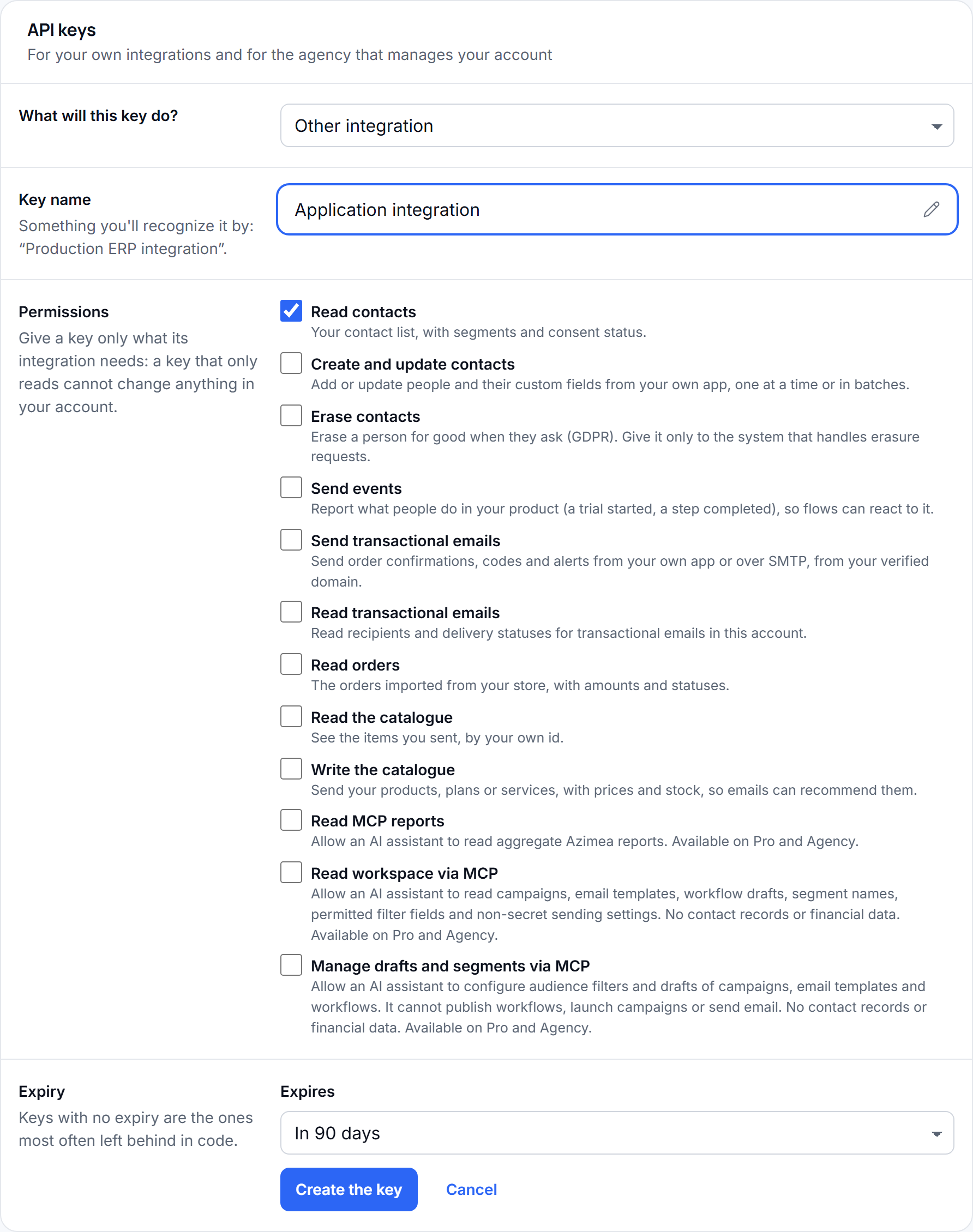
Use this route if your MCP client supports a remote Streamable HTTP server and lets you set a bearer header. This is a connection to Azimea’s hosted server, not a local MCP installation.
-
In Settings › API keys, create a key for the company and select Read MCP reports (
reports:read), Read workspace via MCP (workspace:read), Edit drafts via MCP (workspace:write), or the combination you need. Save the key when it is shown; it is not displayed again. -
Add a remote MCP server in your client with these connection values:
Transport: Streamable HTTPServer URL: https://mcp.azimea.com/Authorization header: Bearer <your Azimea API key> -
List or refresh the available tools in your client. Call
get_connected_companyfirst to check the company. Give each assistant its own key so you can revoke one connection without disrupting another.
Do not put an API key in a prompt, a shared configuration file or a URL. To disconnect, revoke the key in Azimea. Some clients cannot add a custom bearer header to a remote MCP server; use a client that supports it or connect through OAuth after Azimea has registered that client.
Use the connection
Section titled “Use the connection”Ask the assistant to use Azimea explicitly. These prompts illustrate a safe sequence:
- “Use Azimea to show campaign performance for the last 30 days.”
- “List the audience filter fields Azimea permits, then create a segment for subscribers in Romania. Do not show individual contacts.”
- “Create an unsent campaign draft for that segment. Add a Romanian and an English version, then show me the draft and its A/B test settings.”
- “Create a welcome workflow draft. Show its graph, configure the email step with my saved template, and validate it. Leave it unpublished.”
Read the returned draft before you publish or send in Azimea. A planned send time stored by MCP is only a preference on a draft; it does not start a schedule. On an already published workflow, MCP can edit a new graph draft, but its live topic and control-group settings must be changed in Azimea. Service-message classification, which can affect people who opted out of marketing, also requires confirmation in Azimea.
Available tools
Section titled “Available tools”| Task | Tools |
|---|---|
| Confirm company and read reports | get_connected_company, get_overview, get_campaigns, get_flows, get_deliverability |
| Read workspace | list_workspace_campaigns, get_workspace_campaign, list_email_templates, get_email_template, get_sending_settings |
| Manage safe audience filters | list_audience_segments, list_segment_fields, create_audience_segment, update_audience_segment, delete_audience_segment |
| Write campaign and template drafts | create_campaign_draft, update_campaign_draft, set_campaign_audience, configure_campaign_targeting, create_email_template, update_email_template, duplicate_email_template, delete_email_template |
| Configure campaign drafts | list_campaign_languages, save_campaign_language, remove_campaign_language, get_campaign_ab_test, save_campaign_ab_test, add_campaign_ab_version, save_campaign_ab_version, remove_campaign_ab_version, remove_campaign_ab_test, get_campaign_tracking, save_campaign_tracking, set_campaign_holdout, set_campaign_best_time, plan_campaign_send_time |
| Configure workflow drafts | list_workspace_workflows, get_workspace_workflow, list_workflow_sources, list_workflow_filter_fields, create_workflow_draft, save_workflow_draft, rename_workflow, discard_workflow_draft, set_workflow_topic, set_workflow_holdout, validate_workflow_draft |
Report tools accept either days from 1 to 90, including today, or inclusive from and to dates in YYYY-MM-DD
format spanning at most 90 days. You may set timeZone, for example Europe/Bucharest; UTC is the default. With
no period supplied, the report covers the last 30 days. Campaign lists are paginated. Campaign and template HTML
is returned by detail tools only when requested.
Audience tools return segment names and IDs, not member counts or existing segment definitions. AI-created filters cannot use email, name, phone, custom attributes or individual spend. Workflow graph tools support source, audience, condition, email, wait, tag, webhook and exit nodes, with the permitted filter fields. Saved webhook URLs and published email snapshots are redacted from graphs returned through MCP; saving an unchanged node preserves its redacted values. Validate the draft before publishing it in Azimea.
If the connection does not work
Section titled “If the connection does not work”- No tools appear: refresh the MCP connection in your client. In ChatGPT, check that the plugin is installed and selected in the conversation. New tools may require a tool refresh.
- Access denied: check the connected company, plan, key expiration and the permission required by that tool.
workspace:writedoes not includeworkspace:read. - OAuth redirect error: send the exact redirect address shown by ChatGPT to Azimea support. Do not send a token.
- Draft save fails: check that the campaign is still a draft and has no pending approval request. For workflows,
inspect the validation issues and use only the fields returned by
list_workflow_filter_fields.
OAuth uses authorization code with PKCE S256. Azimea checks token validity, company access, permissions and plan on every request. Every tool call records the tool name and actor in the audit log, without storing its arguments or returned data there.