Company single sign-on
Set up company SSO, verify your directory and link team members to their Azimea accounts.
company SSO · single sign-on · Microsoft Entra · company sign-in · directory ID
Company single sign-on (SSO) lets members use their company’s identity directory to sign in to Azimea. It is included with a direct Pro subscription for the company. The Agency plan and agency coverage of a client company do not include it. Company SSO is optional: members can still use their existing Azimea sign-in method.
Azimea currently supports Microsoft Entra ID for company SSO. The Google and Microsoft buttons on the regular login page are personal sign-in methods; using one of those buttons does not activate company SSO. A company using a different identity provider cannot configure it directly in this version.
Personal passkeys, verification methods and active sessions are managed in Account security. Completing a directory identity link requires confirmation with an existing account method.
Before you start
Section titled “Before you start”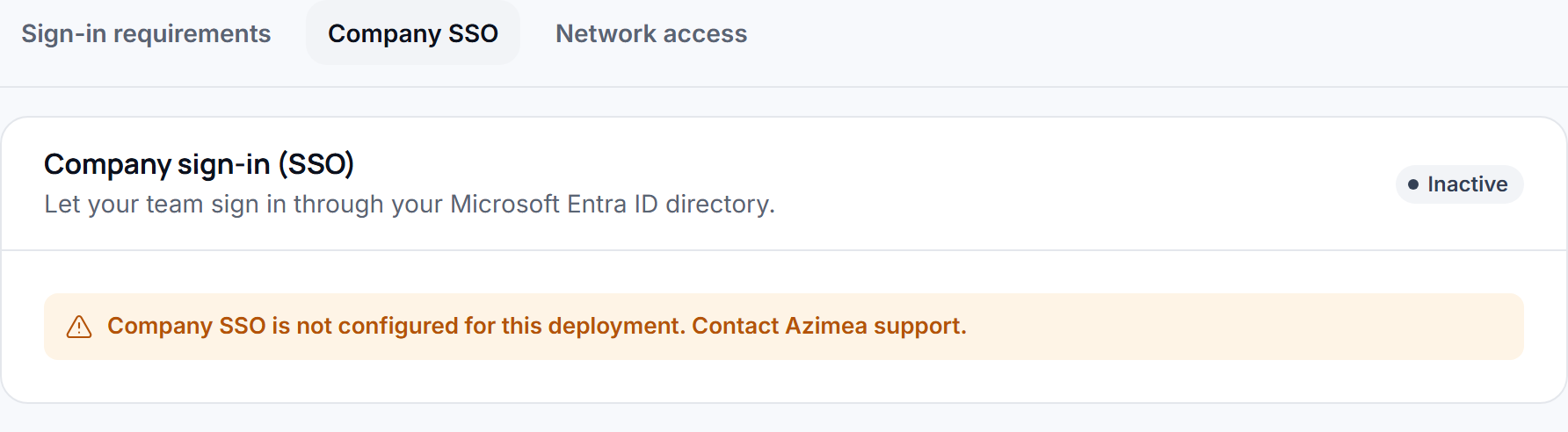
- You need an Owner or Admin role in the company and a direct Pro subscription.
- Your company needs a Microsoft Entra directory. Find its Directory (tenant) ID in the Microsoft Entra admin center under Overview. Use the company’s directory ID, not an application’s client ID.
- You need an account in that directory to verify the setup. Azimea must also have its company SSO integration available; if the settings page says it is unavailable, contact Azimea support.
Set up your company’s sign-in
Section titled “Set up your company’s sign-in”- In the dashboard, select the correct company and open Settings → Company SSO.
- Enter the company’s Directory (tenant) ID and save it.
- Select Verify with Microsoft. Sign in with an account from that directory, return to Azimea and confirm the identity shown. This also links your directory identity to your existing Azimea account.
- Select Turn on SSO. The page shows a company sign-in link that you can share with team members.
Members who already have Azimea accounts should open the same settings page while signed in and choose Link Microsoft account. They sign in through the company directory and confirm the identity shown. Azimea never links an account solely because the email addresses match. Once linked, members can use the company’s sign-in link. Accounts with Azimea two-step sign-in enabled still complete that step after company SSO.
Changes and limitations
Section titled “Changes and limitations”- Changing the Directory ID turns SSO off until an administrator verifies the new directory. Turn it on again after verification.
- Turning SSO off leaves existing Azimea accounts in place. Password sign-in remains available.
- If the company leaves direct Pro, company SSO becomes unavailable; its saved configuration is retained. Review its status when the company returns to an eligible subscription.
- Company SSO does not create Azimea users automatically or force every member to use the directory. Invite and manage members from Members and roles.
If verification fails, check that you used the Directory (tenant) ID, that the Microsoft account belongs to that directory, and that the company’s Pro subscription is active. You can keep using your existing Azimea sign-in while resolving the issue.