Your home dashboard
Read email performance, understand your audience and continue your next campaign from Home.
home · dashboard · email overview · draft emails
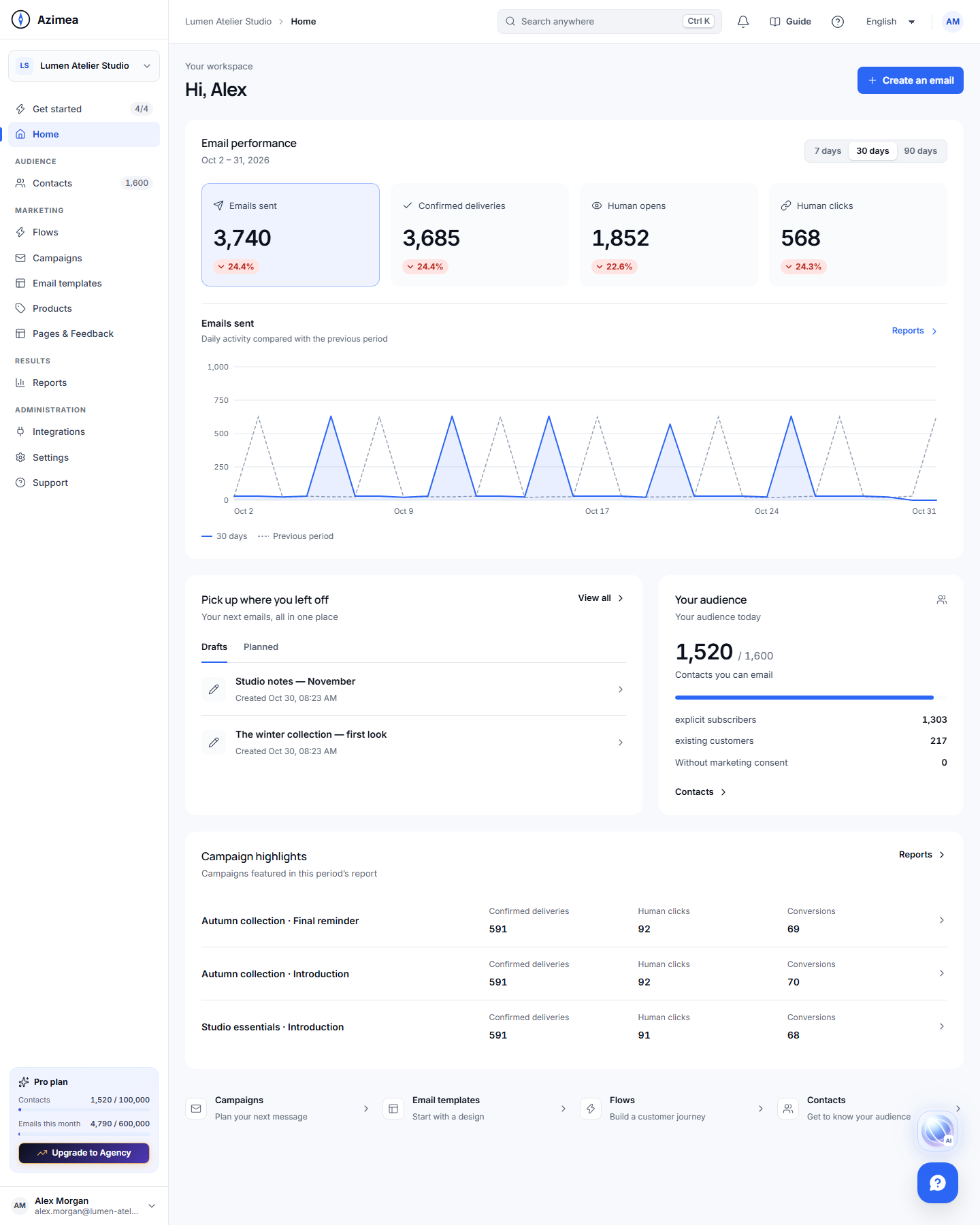
Home brings together email performance, your current audience and the campaigns you are preparing. It works with imported contacts, applications and connected stores. Creating or opening an email does not send it.
Read email performance
Section titled “Read email performance”Choose 7 days, 30 days or 90 days. The dates under Email performance show the selected reporting period. Select Emails sent, Confirmed deliveries, Human opens or Human clicks to change the daily graph. The solid line represents the selected period; the dashed line represents the previous one. The graph also supports keyboard navigation when focused.
The percentage beside each total compares its count with the previous period. When the previous count is zero, Home shows No previous activity rather than inventing a percentage increase. If the current period is quiet but the previous one has activity, the comparison remains visible.
Delivery rate uses emails sent as its denominator. Human open and click rates use confirmed deliveries. An unavailable denominator appears as a dash. Opens and clicks count human engagement, rather than automated opens. Reports opens the full reporting workspace, which has its own period selector.
When neither period has activity, Home offers a starting point instead of empty metric tiles and a zero graph. A loading error offers Try again; it is not shown as a successful zero result.
Continue your work
Section titled “Continue your work”Create an email opens a new email editor. A draft is saved when you start working on it; the button does not send or schedule anything. Pick up where you left off shows up to three campaigns from Drafts or Planned. Select a campaign to open it, or View all to open the same category in Campaigns.
Drafts show their creation date. Planned work shows its planned date when one exists, otherwise its creation date. Empty categories and failed loads have separate states. Viewer members can read the dashboard but do not see email-creation or contact-import actions.
Understand your audience
Section titled “Understand your audience”Your audience shows contacts eligible to receive email out of all contacts, followed by subscription and marketing-consent figures. These are the current audience totals, independent of the performance period. They do not guarantee that a particular campaign will reach everyone: its audience, consent rules and sending checks still apply. Open Contacts to inspect people, or import contacts when the audience is empty.
Follow the results
Section titled “Follow the results”When the selected period has featured campaigns, Campaign highlights shows a short preview of confirmed deliveries, human clicks and attributed conversions from its report. Open a row for that email’s reporting view. Detailed attribution, campaign analysis and report-period controls remain in Reports.
The shortcuts below lead to Campaigns, Email templates, Flows and Contacts. An e-commerce overview is available separately when the company has commerce data or a connected store.
Continue with your first campaign, audience and consent, or reading reports.