Restrict access to your company network
Allow access to a company only through approved public IP addresses, VPN egress addresses or CIDR ranges.
VPN · corporate network · IP allowlist · network access · network restricted
Use Settings → Organization → Network access to restrict a company’s dashboard and authenticated HTTP API access to approved networks. This is a company policy, separate from your personal password and two-factor authentication. Existing companies start with unrestricted access.
Configuration is included during an active Trial and on Start, Growth, Pro and Agency. It is not included in Free. See the feature comparison on Pricing or Plans in your dashboard.
Before enabling
Section titled “Before enabling”Ask your network administrator for the public egress addresses used by the company VPN. The private address assigned to your laptop, such as 10.0.0.5, is not the address Azimea sees. With split tunneling, route traffic to Azimea through the VPN. Include every VPN exit, failover exit and relevant IPv6 range. Use dedicated company egress addresses: a shared commercial VPN exit also permits other connections from that address.
The restriction covers all members, delegated agencies, Azimea support sessions, HTTP API keys and MCP requests for this company. An integration server calling the HTTP API must also use a permitted network. MCP connections made through a hosted service originate from that service’s network, which may differ from your browser’s VPN connection.
Public hosted pages, email tracking, unsubscribe links, provider webhooks and SMTP keep their existing access rules. This setting does not make the public Azimea website private or provide private network hosting. Each workspace, including a sandbox or agency workspace, has its own policy.
Configure the policy
Section titled “Configure the policy”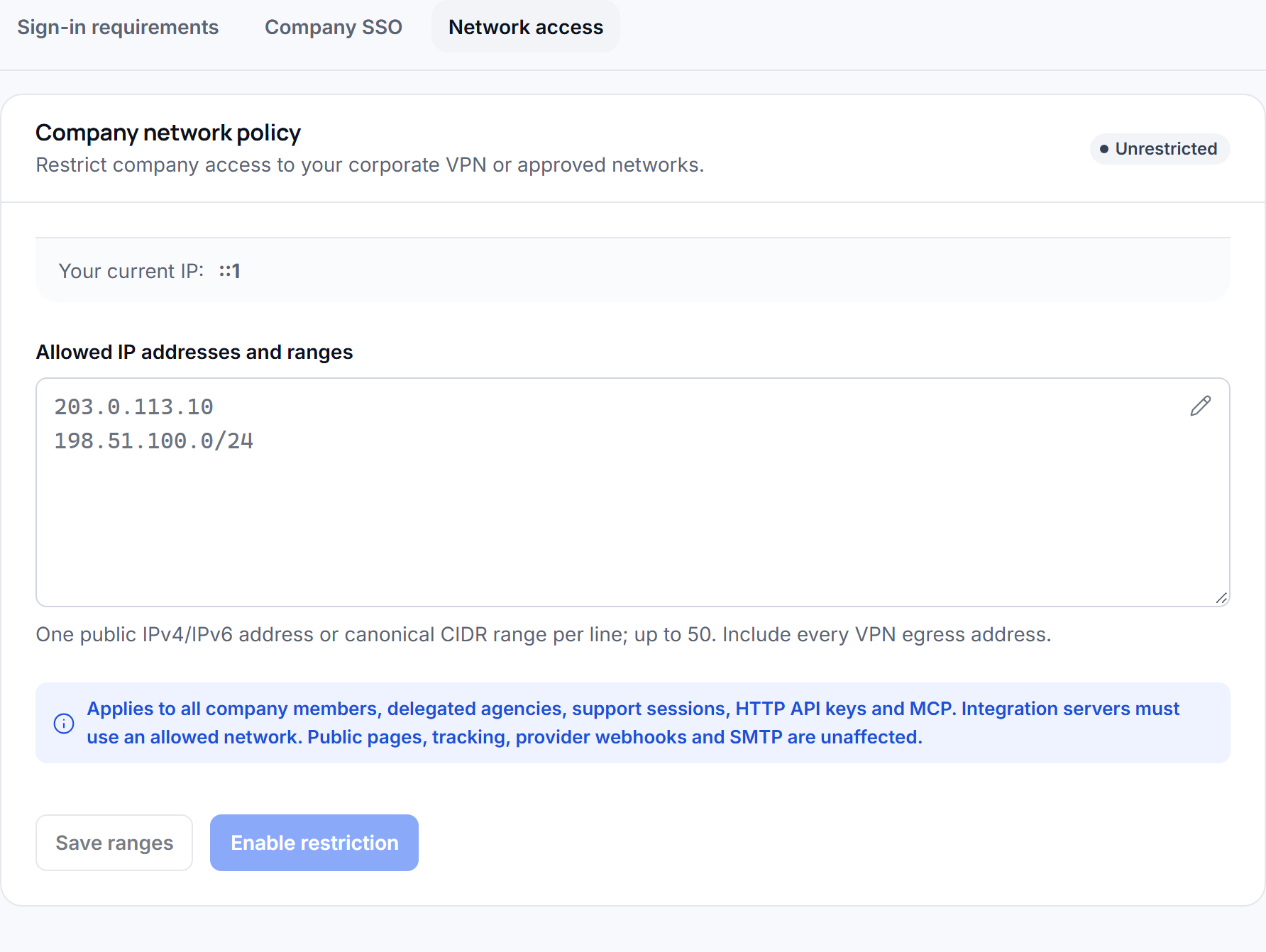
- Open Network access in the intended company. Only the company’s own Owner or Admin can change it. Delegated agencies and other members can inspect the configuration.
- Check Your current IP. This is the client address observed by Azimea through its trusted proxy configuration.
- Enter one public IPv4 address, public IPv6 address or canonical CIDR range per line, up to 50 entries. For example,
203.0.113.10represents one address;198.51.100.0/24represents a network. These are documentation examples: replace them with your actual egress addresses. CIDR network addresses must have their host bits cleared. Private, loopback and unrestricted ranges are rejected. The form validates entries as you type and identifies the first invalid line. It also checks the 50-entry limit and whether the list includes your current address before activation. Invalid lists cannot be saved. The API repeats validation, so a direct API request cannot bypass these rules. - Use Save ranges to prepare the list without activating a disabled policy. Then choose Enable restriction and review the confirmation. You can also enable directly with your edited list.
- Confirm your identity with an existing account method before saving, enabling or disabling the restriction. See Account security for passkey and code-based confirmation options.
Activation and changes to an enabled list must include your current public IP. An enabled policy cannot have an empty list. Addresses are canonicalized and duplicates are removed when saved. If another administrator changed the policy, reload it and review their version before saving again.
What users experience
Section titled “What users experience”Azimea checks the network on each authenticated company HTTP request. An existing login does not bypass the restriction. When a request comes from outside the allowed networks, the dashboard replaces company screens with Connect to your company VPN. Connect to the VPN, then choose Check access again. You can still sign out or switch to another company.
Ordinary members and delegated agencies cannot recover or change the restriction. The blocked screen tells them to contact their organization’s administrator for access or the correct VPN connection.
The server also checks the network before delivering protected realtime messages, including to connections opened before a policy change. Previously downloaded information cannot be removed from a device by a network policy.
HTTP API and MCP requests from outside the permitted networks receive 403 with the error code network.restricted. Authentication, personal identity and company selection remain available so users can recover their navigation; they do not unlock company data.
Change, disable or recover
Section titled “Change, disable or recover”From an allowed network, an Owner or Admin can save a new list or choose Disable restriction. Disabling preserves the saved addresses for later reuse. Configuration changes appear in the audit log.
If Trial expires or the workspace moves to Free, a restriction already in force stays enforced to avoid opening access unintentionally. On Free, an Owner or Admin can only disable it explicitly, preserving the saved list. Creating, editing or re-enabling a policy requires an active Trial or a paid plan. The API responds with 403 network.plan_required for an unavailable configuration action. Subscription lookup failures also refuse configuration; they do not disable existing enforcement.
Administrator self-service recovery
Section titled “Administrator self-service recovery”A direct company Owner or Admin can choose Recover network access on the blocked screen. This does not grant general access from outside the approved networks.
- Confirm your current password if your account has one. External-login-only accounts use their authenticated dashboard session and the verification step below.
- If an authenticator app is configured for 2FA, enter a fresh code from that app. There is no email fallback for an authenticator account. If your configured 2FA method is email, or you have no 2FA, a recovery code is sent to your verified account email.
- Codes expire after five minutes and allow five attempts. Email resends have a 60-second cooldown and do not extend the original window or reset attempts. Emailed codes appear first in the localized subject, for example
001234 is your network recovery codein English. Keep any leading zeroes. - After verification, you have five minutes to make one change to the network policy: correct the ranges to include your current public IP or explicitly disable the restriction. Existing range validation, commercial eligibility and concurrency checks still apply. On Free or with an unavailable subscription, only disabling the saved policy without editing its ranges is allowed.
- Saving consumes the authorization and checks access again. Until then, company data, API keys and realtime messages remain blocked. The operation is audited and direct Owners/Admins receive a security notification.
Recovery is tied to the user, company and login session. Signing in again, switching company, changing the account email/security stamp or 2FA method, losing the administrator role or another administrator changing the policy invalidates the pending recovery. Sessions opened before this feature was released may require signing out and back in before recovery is available.
If you cannot complete identity verification, contact Azimea support. Operator recovery is a separate, permission-controlled action with a recorded reason. A support session has no automatic bypass. After operator recovery, review the new addresses and re-enable the policy from the intended VPN.