Email templates and editor
Design reusable emails, personalize their content and use them in campaigns and automated flows.
email editor · template · drag and drop · email design · saved blocks · newsletter design · personalization
What it does and when to use it
Section titled “What it does and when to use it”To start from a description or visual reference, use AI Studio. Review its generated draft, then continue refining it in the visual editor.
An email template is a reusable message: its layout, content and subject. Use the visual editor to create newsletters, announcements, welcome emails or service updates with your brand. A template can be the starting point for a campaign or an email step in a flow.
Create your first template
Section titled “Create your first template”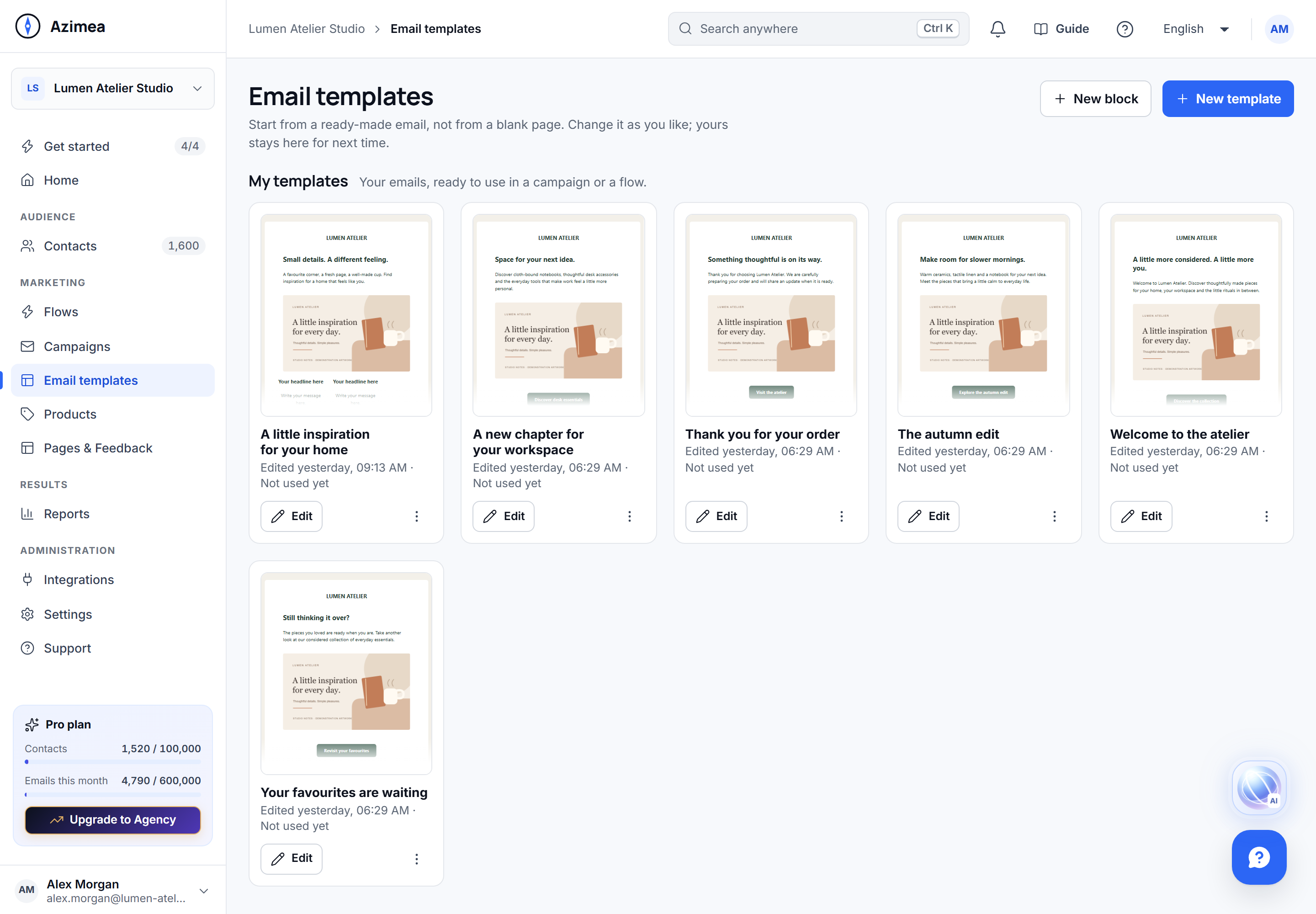
For a complete walkthrough with screenshots of the designer and a worked product email, follow Design your first email template.
For quick starts and settings guidance for each block, see the Email component reference.
- Open Email templates. Choose Use on a ready-made model, or New template to start from a blank page. Using a model creates your own editable copy.
- Give the template a name and subject. Add and arrange the content in the visual editor, then adjust the text, images, buttons, spacing and colors to match your brand.
- Check your links, sender identity and the content people will see on a narrow screen as well as on desktop.
- Wait for Saved before leaving the editor. The template is available under My templates.
Your template is content, not a send: saving it does not email anyone. Choose the recipients, sender and timing in the campaign or flow where you use it.
Choose a ready-made model
Section titled “Choose a ready-made model”You can also explore the public email design collection before signing in. Browse by industry, design style and email type, or search for a campaign such as Black Friday. On phones, search and email-type filters are shown first; expand Industry · Style for the other filters. The number beside that control shows how many of these filters are active. You can reset the filters even while their controls are collapsed. The collection includes product promotions, discount codes, bundles, gift guides and subscriber offers with different layouts. Other examples cover appointments, repairs, food subscriptions, animal care, delivery updates, wholesale ordering, learning milestones and community events. Industry filters include healthcare, pet care, local services, food makers, manufacturing and logistics, and energy.
The gallery lists the newest additions first and initially shows 30 matching designs. Load 30 more templates adds the next batch below the existing cards; the count shows how many are displayed and how many match. Applying a filter or changing the search starts again with the first batch. The last button reflects the remaining number and disappears when all matches are visible.
Choose Preview to inspect the complete design on desktop or mobile, or use the black Edit template button to continue in Azimea. After signing in, the selected design becomes your company’s editable copy. Returning to the same public design opens that copy, preserving your edits. Check every example price, discount, code, offer period, condition and destination before using a promotional design for your business. Appointment, delivery, renewal and completion examples also contain sample details: replace them with accurate information for your recipients. Photos illustrate fictional businesses. The designs include varied serif, condensed, handwritten and monospaced fonts; email clients that do not support a web font use its fallback. Review your actual message in the preview and a test email before sending. Saving a copy does not send an email.
The complete preview loads when you open it. If it cannot load, select Try again, or use Edit template to continue in the editor. Closing the preview returns you to the same card.
Under Ready-made models, choose All to browse the collection or filter by the purpose of your email. The same purposes are available when choosing a template for a campaign; the selector shows categories that have available models.
| Purpose | Use it for |
|---|---|
| Welcome & onboarding | Introductions, first steps and getting started with a product, service or community. |
| Newsletters | Regular updates, editorial collections, reports and roundups. |
| Offers & promotions | Offers, seasonal promotions and subscription incentives. |
| News & launches | Product releases, service changes and announcements. |
| Events | Invitations, classes, webinars and event schedules. |
| Guides & resources | Tutorials, practical guides, reading lists and educational content. |
| Reminders | Renewals, deadlines, appointments and unfinished actions such as an abandoned cart. |
| Engagement & loyalty | Feedback requests, reactivation and maintaining a relationship with your audience. |
| Confirmations & notifications | Confirmations, receipts, tickets and service notifications. |
Choose View to inspect a model before using it. Use creates an independent editable copy; it does not change the original model or send the email. A category describes the content’s purpose, not its sending trigger. Configure recipients, events and timing in the campaign or flow where the email will be used. Models requiring cart data are only offered where that data is available.
You can also start from the free template collection on the public site. Choosing a design takes you to the dashboard; sign in or create an account to open your company’s editable copy. Models without content in your interface language use their English version. Review the subject and message language before sending.
Personalize with the data you have
Section titled “Personalize with the data you have”Use the editor’s personalization controls for recipient details. Check the preview and test email with realistic data, including a contact whose optional fields are empty. A person’s name or a custom contact field can support a newsletter or onboarding message. Cart and order details belong in emails whose triggering event supplies that data.
A campaign cannot fill in a specific cart or order. If the message reports unavailable personalization values, replace those values or use the template in the appropriate flow.
Reuse templates and blocks
Section titled “Reuse templates and blocks”My templates holds your saved emails. You can edit, rename or duplicate a template for another message. Saved blocks holds reusable parts of an email, such as a header, signature or call to action, that you can add from the editor. Use these to keep related messages consistent.
When an email is already copied into a campaign or a published flow, editing its source template does not automatically replace that email. Review the campaign content or the flow draft before its next send or publication.
Check before sending
Section titled “Check before sending”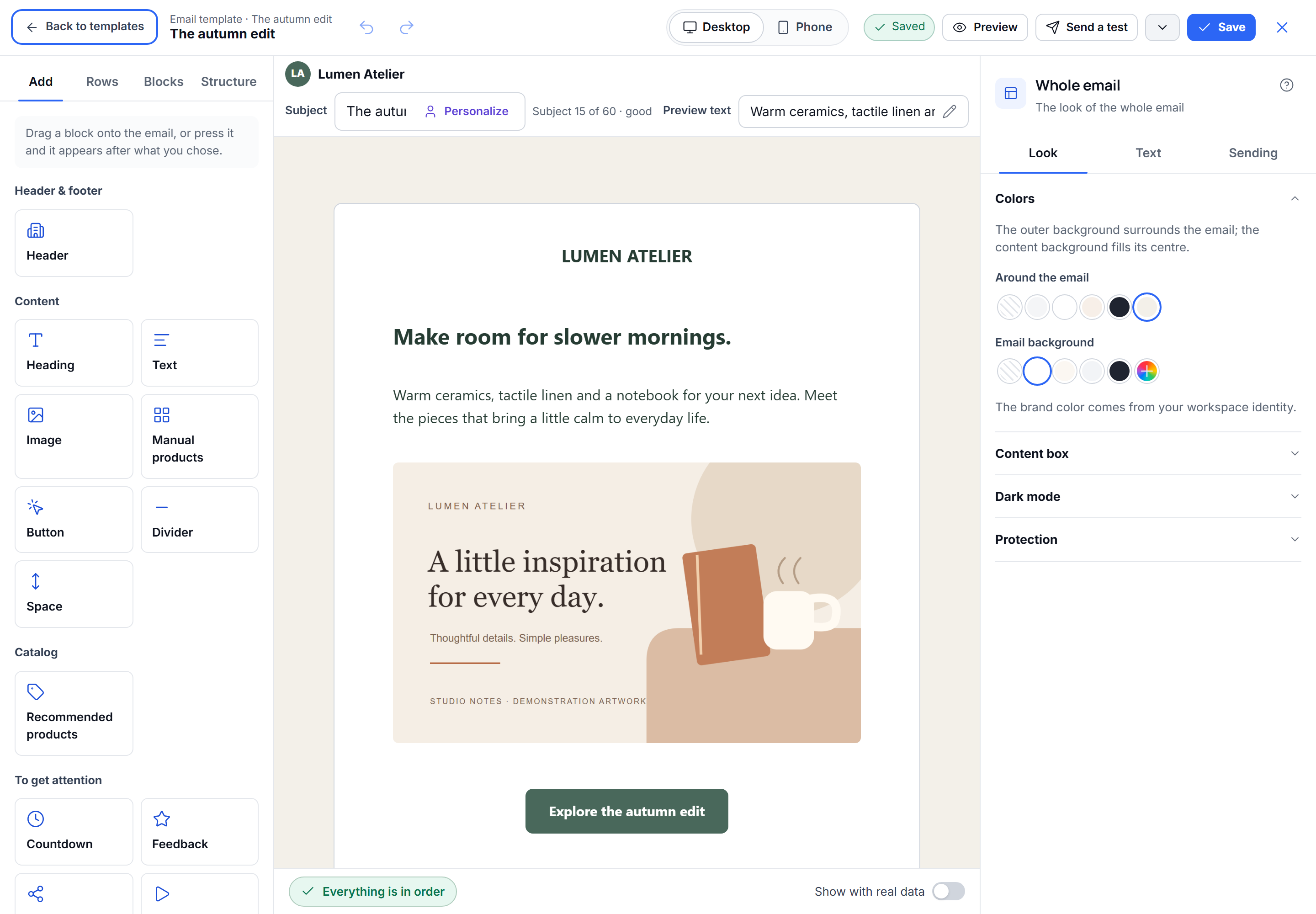
- Verify your sending domain and sender.
- Check the subject, links, images and personalized content in the actual campaign or flow.
- Send a test email or use a sandbox to inspect the result.
- Review the audience and consent before sending to real contacts.
After sending, use Reports to review delivery and engagement.